Introduction
You changed the cover image on your landing page. You ran the deploy. You opened the URL in an incognito tab — looks perfect. Then you paste the link into a LinkedIn post, hit preview… and the old image stares back at you.
We hit this on almost every client project that involves a marketing site refresh, a new landing page launch, or a rebranding. It is not a bug on your side. It is how social platforms cache link previews — and the fix takes about two minutes once you know where to click.
Why Social Platforms Show an Outdated Preview
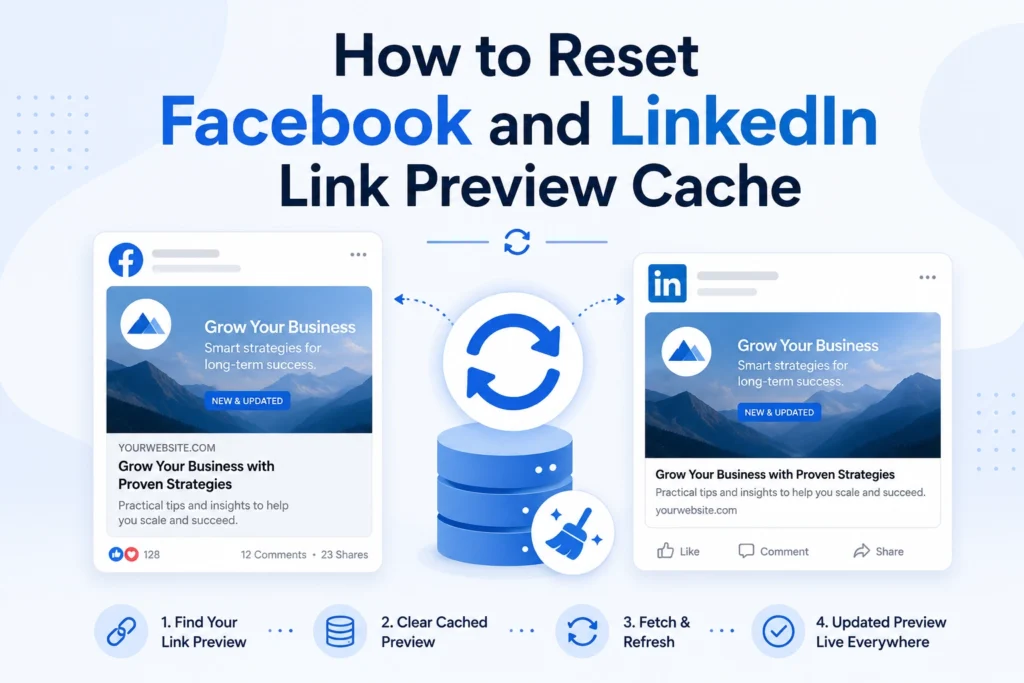
When you share a link, Facebook and LinkedIn do not re-read your page every time. They send a crawler once, grab your Open Graph tags (og:image, og:title, og:description, og:url), and store the result. Every subsequent share pulls from that cached copy.
- Facebook holds onto its cache for roughly 30 days
- LinkedIn keeps it for about 7 days
So unless you tell the platform otherwise, your new image will not show up until the cache naturally expires. The good news is that both platforms provide official tools that let you force a refresh on demand.
How to Fix It on Facebook Using the Sharing Debugger
Facebook’s Sharing Debugger is the go-to tool for clearing stale link previews:
- Go to https://developers.facebook.com/tools/debug/
- Paste the URL you want to refresh
- Click Debug, then click Scrape Again
Facebook re-crawls the page, re-reads your og: tags, and updates the cached preview for all future shares. If it does not update on the first try, click Scrape Again two or three times — this is well-documented behavior.
For posts that are already live with the old preview, open the post on desktop, click the three-dot menu, and choose Refresh Share Attachment. This is the only way to update an existing post.
How to Fix It on LinkedIn Using the Post Inspector
LinkedIn provides a similar tool called the Post Inspector:
- Go to https://www.linkedin.com/post-inspector/ (you need to be logged in)
- Paste your URL
- Click Inspect
There is no separate “scrape again” button — running the inspection is the refresh. LinkedIn’s cache can be stickier, so wait 5–10 minutes before testing in a real post draft. If the old image persists, open a fresh draft rather than refreshing the same one.
When the Cache Still Will Not Refresh
In our experience, 90% of the time the steps above solve it. For the other 10%, here is the checklist we run through:
Add a version query string to your image URL. Change og:image from /img/cover.jpg to /img/cover.jpg?v=2. Both crawlers treat this as a brand-new image and bypass any image-level caching.
Check that your og: tags are in the raw HTML, not injected by JavaScript. LinkedIn’s crawler does not execute JavaScript. View page source (Ctrl+U), not Inspect Element. If your tags are not in the raw response, the fix is server-side rendering or pre-rendering for crawler user-agents.
Purge your CDN cache. If you are on Cloudflare, Fastly, or similar, the CDN may still be serving the old image to the crawler. Purge both the image URL and the page URL, then re-run the debugger.
Watch out for WebP images. Modern WordPress and Next.js setups serve WebP by default — great for users, invisible to LinkedIn. Always export a dedicated JPEG for your og:image tag.
Use property=, not name=. Open Graph requires <meta property=”og:image” content=”…”>. Using name=”og:image” will validate as HTML but get ignored by crawlers.
Check robots.txt. Make sure LinkedInBot and facebookexternalhit are not blocked.
If your link previews are misbehaving in ways this guide does not cover — JavaScript-rendered tags, complex redirect chains, or multi-language sites with conditional metadata — drop us a line. We have debugged enough of these to have opinions.